


Add to Calendar Button is flawed
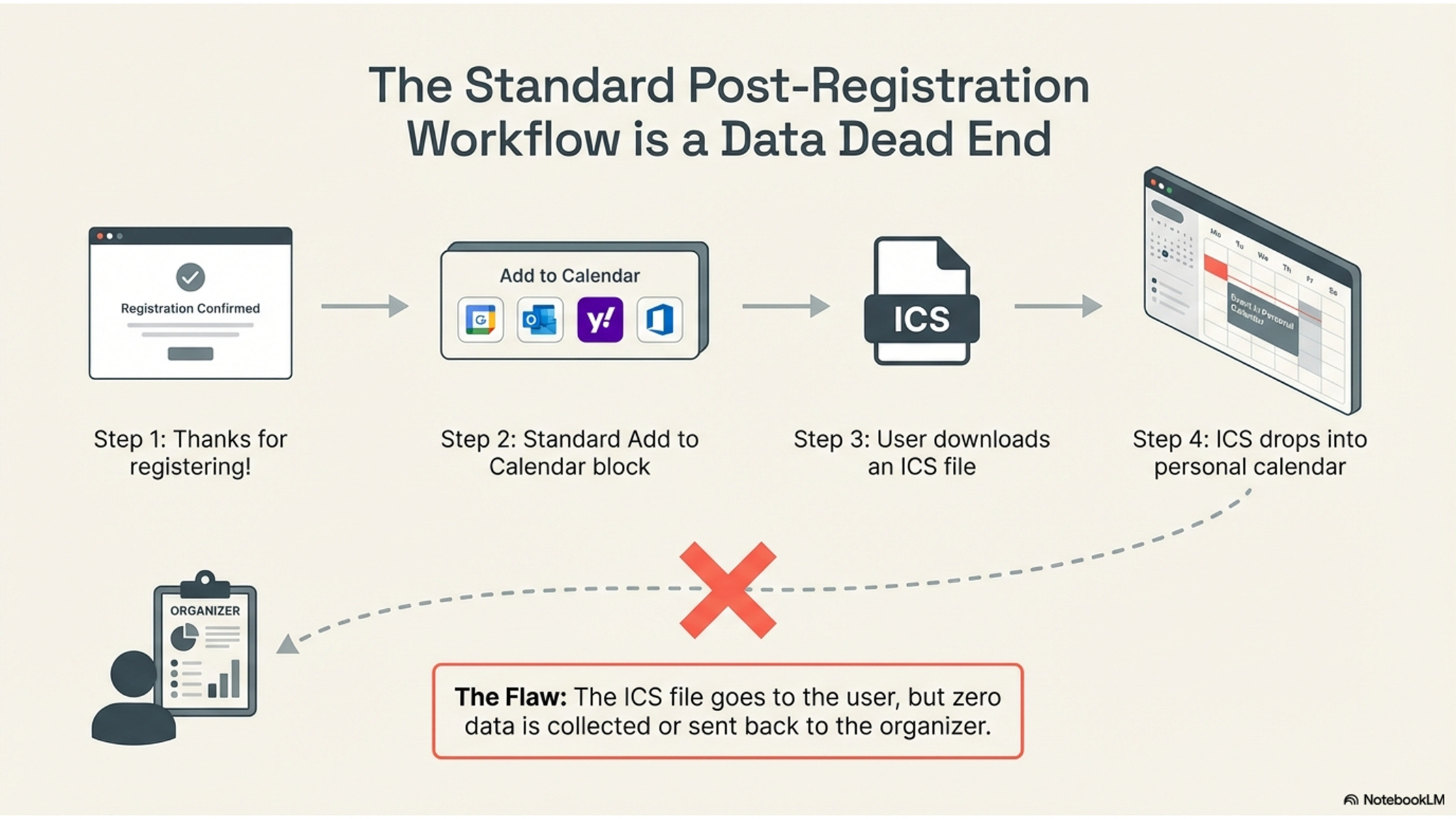
The Add to Calendar button does not collect RSVP’s of Y,N, M when downloaded, and the event cannot be updated by the organizer once it’s on the customer’s calendar.
Because the Add to Calendar button is generated and used for millions of events a day, it has become the standard workflow for event registration and reminders.
It is used in email and websites to “Mark Your Calendar”.
It is sometimes paired with the RSVP form to gather RSVP data independently of the .ICS is being downloaded.
These 2 steps are time-consuming for the customer and the organizer, creating friction and a bad overall experience, resulting in email reminders being sent for promotions, product launches, and post-registration to make sure “Its on your Calendar” .
Our solution solves this mess.
Introducing the Calendar Invite Buttons
The Calendar Invite Button is a REST API with the Calendar Invite pipeline built in, usable in Email and Web use cases.
In this use case, when a customer enters their email address in the email field on the Sports Event Page and clicks a button, they receive a calendar invite for an NBA game.
The data is collected for Y, N, or M when they receive the calendar invite in their inbox and calendar client.
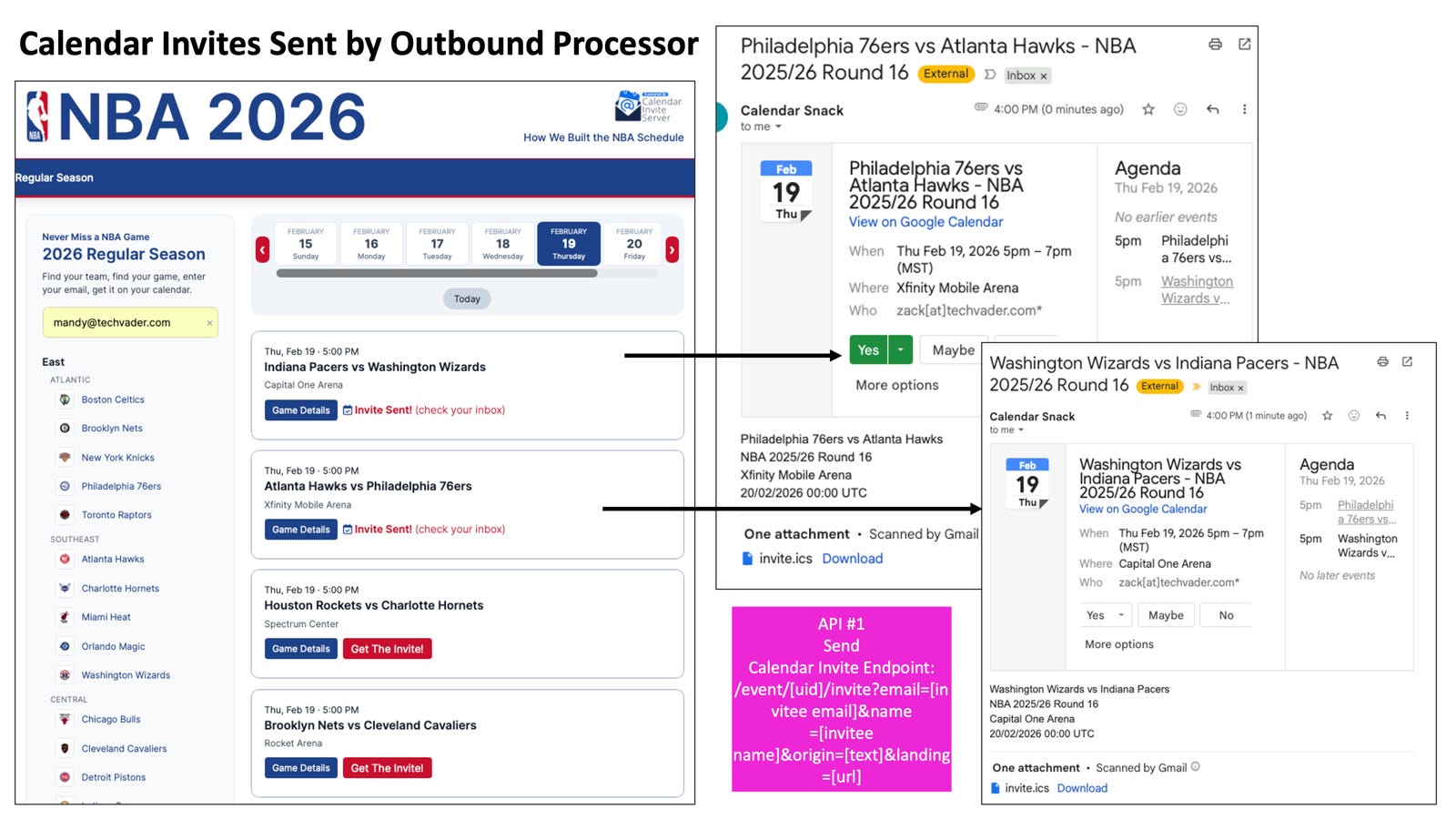
The Calendar Invite sent to the customer can be updated by the organizer to reflect changes to promotional offers, such as tickets, merch, and third-party insertions, before or during the event.
Organizer calendar invite event data is tracked and gathered in the reports.
Auto Generated Event Pages
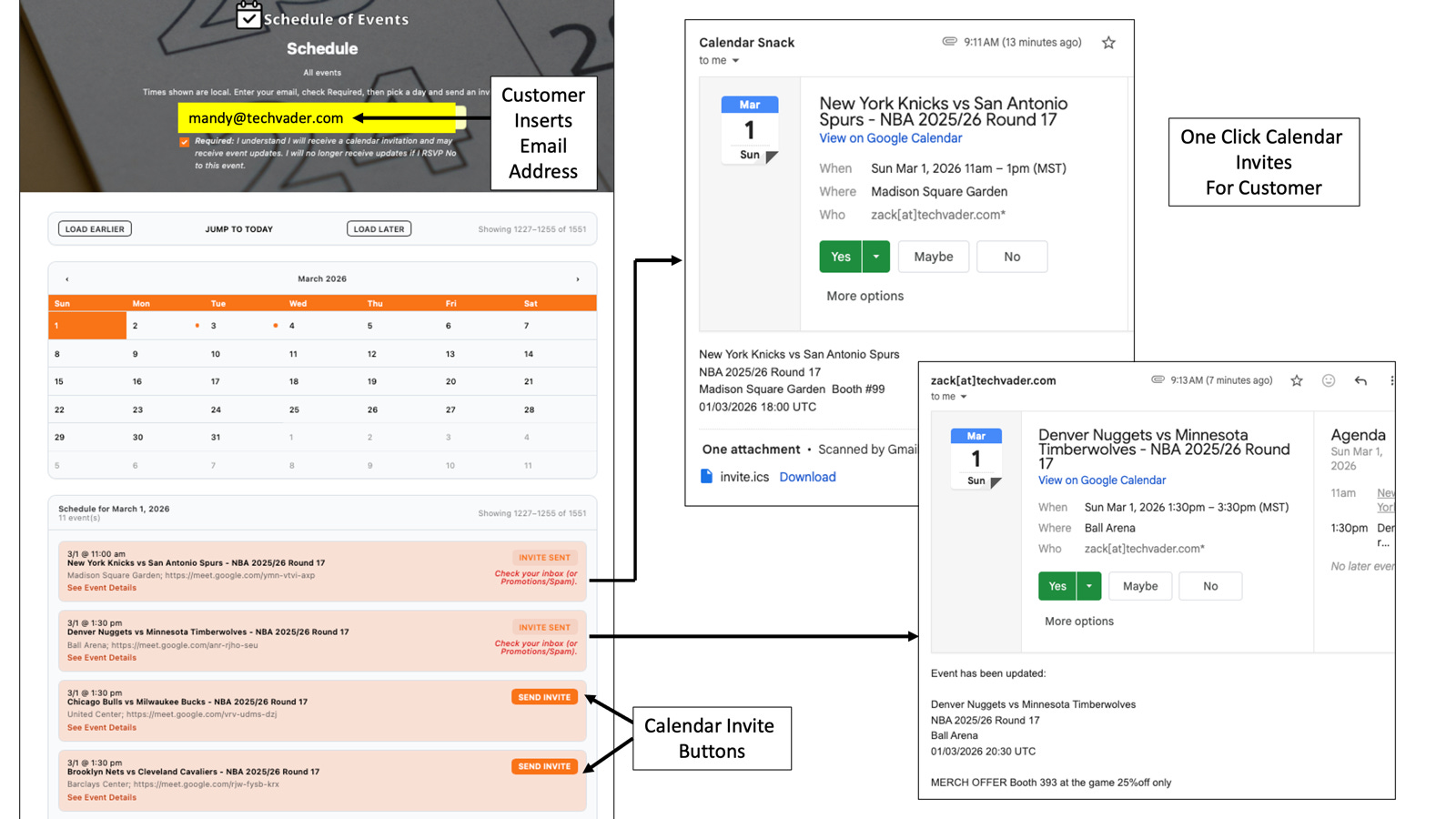
The pages are auto-generated and formatted using a set of workflows and APIs that are part of the Calendar Invite Server packaged solution.
The calendar invite buttons for the individual sporting events are automatically injected into the pages.
Configuring the Sporting Events Page
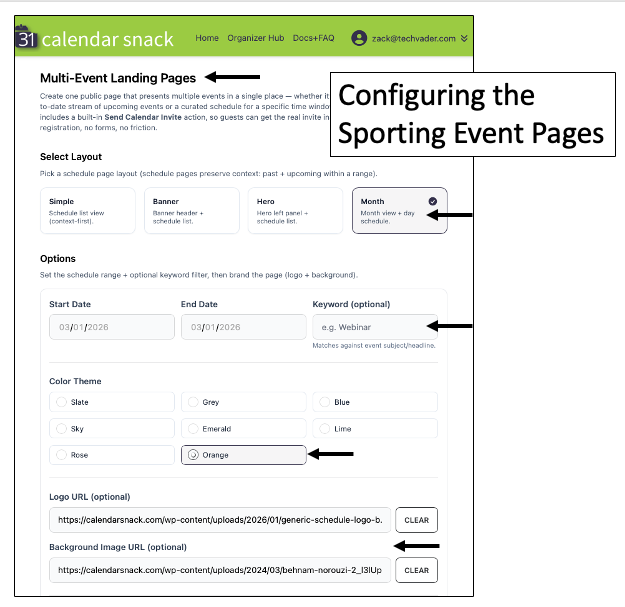
The Multi Event configuration page helps the organizer determine the layout for Single or Multi Event, and how the Sporting Events should be visually laid out with colors, dates, and Optional Logos and background URLs.
When completed, the Sport Events page generates a shareable URL for your customers.
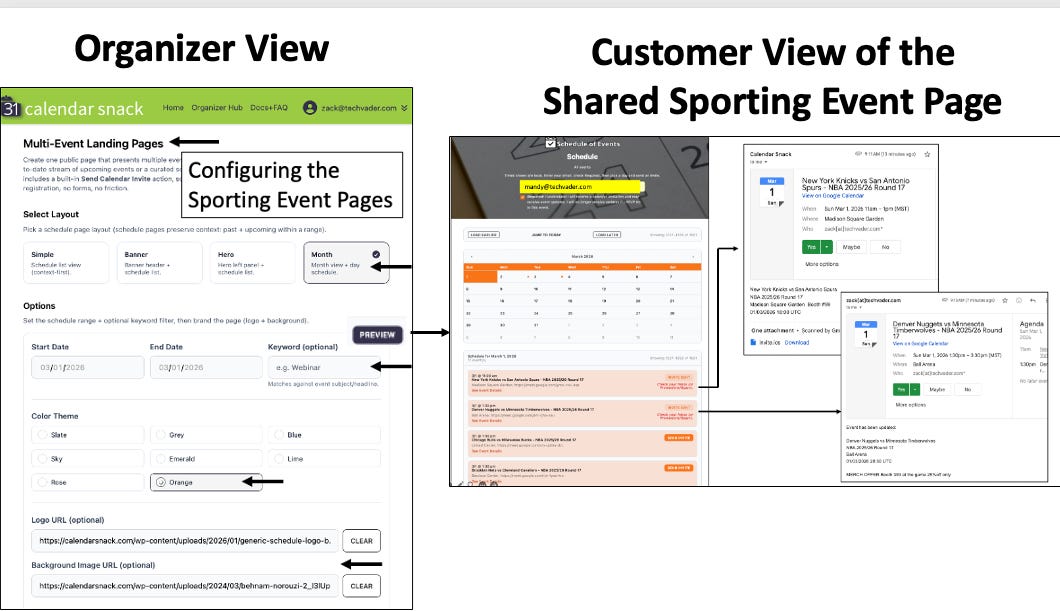
The compiled workflow looks like this when moving from the Organizer View to the deployed shared page, where the customer can select and receive calendar invites sent to the email address they insert into the Sport Event page.
RSVP Data Collection
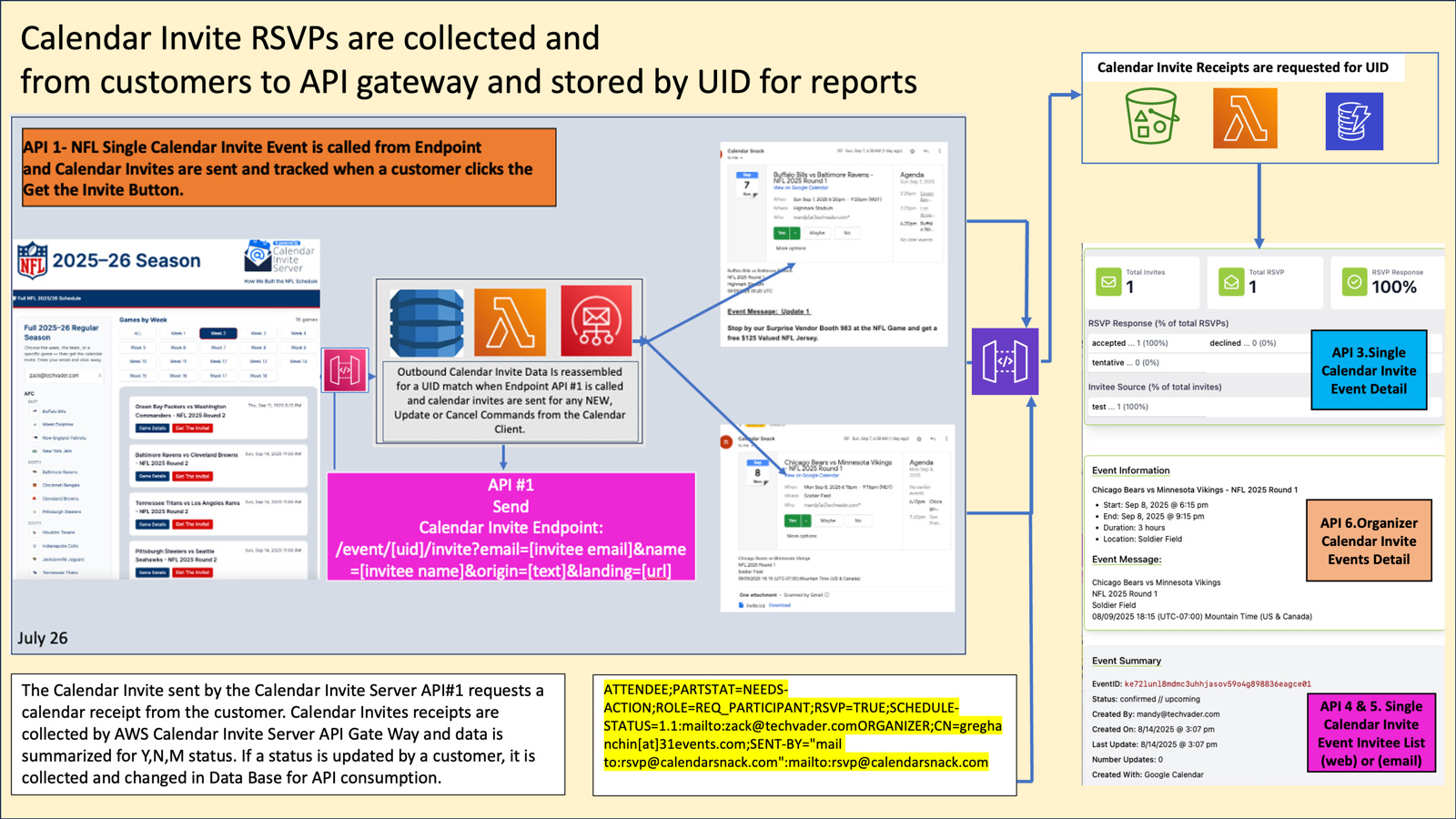
When a customer selects a Y, N, or Maybe status in the Calendar Client, that data is sent to the API for collection and storage. If the customer changes their mind, the changes are captured until the event ends.
The workflow for the Sporting Event Page
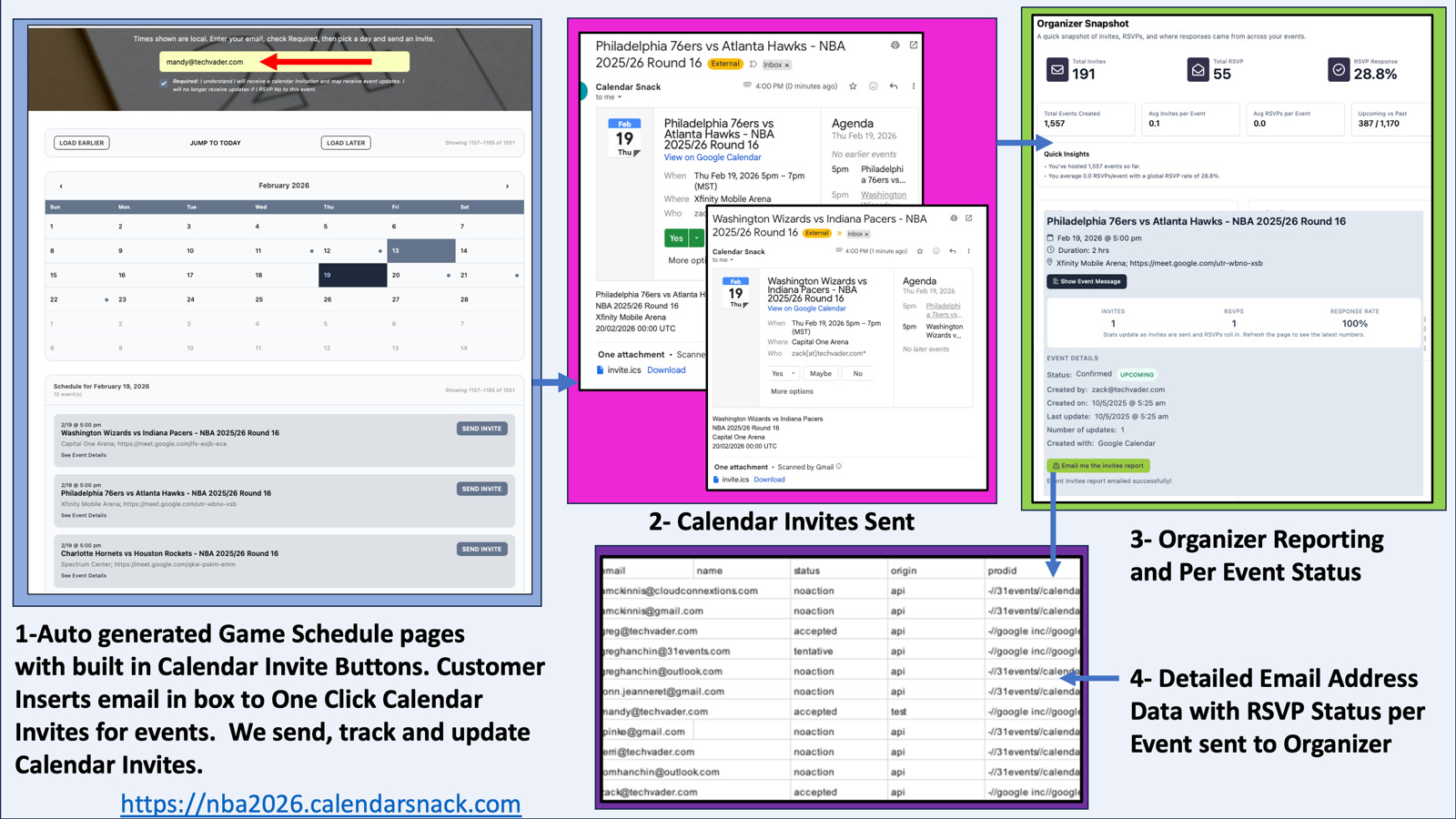
1- Auto-generated Sporting event page is shared with the customer.
2- They insert their name into the email box on Sporting Page. Select the games by clicking one button to get the calendar invite.
3- Calendar Reciept RSVP information is gathered of Y, N, or M and sent back to the API for reporting.
4- A detailed report containing Y, N, M, and Email address can be sent to the organizer in a CSV file.
Getting NBA Data Into Calendar Invite Server
Nerd Alert - You may not be interested in this part.
Front End (FE) to Back End (BE). API’s and Workflow in AWS.
The tech stack is ready to be installed in any one of the millions of AWS accounts using a CloudFormation template that deploys the CI/CD pipeline for the Front End GUI, which is wired to the Back End (BE) Calendar Invite Server on AWS services.
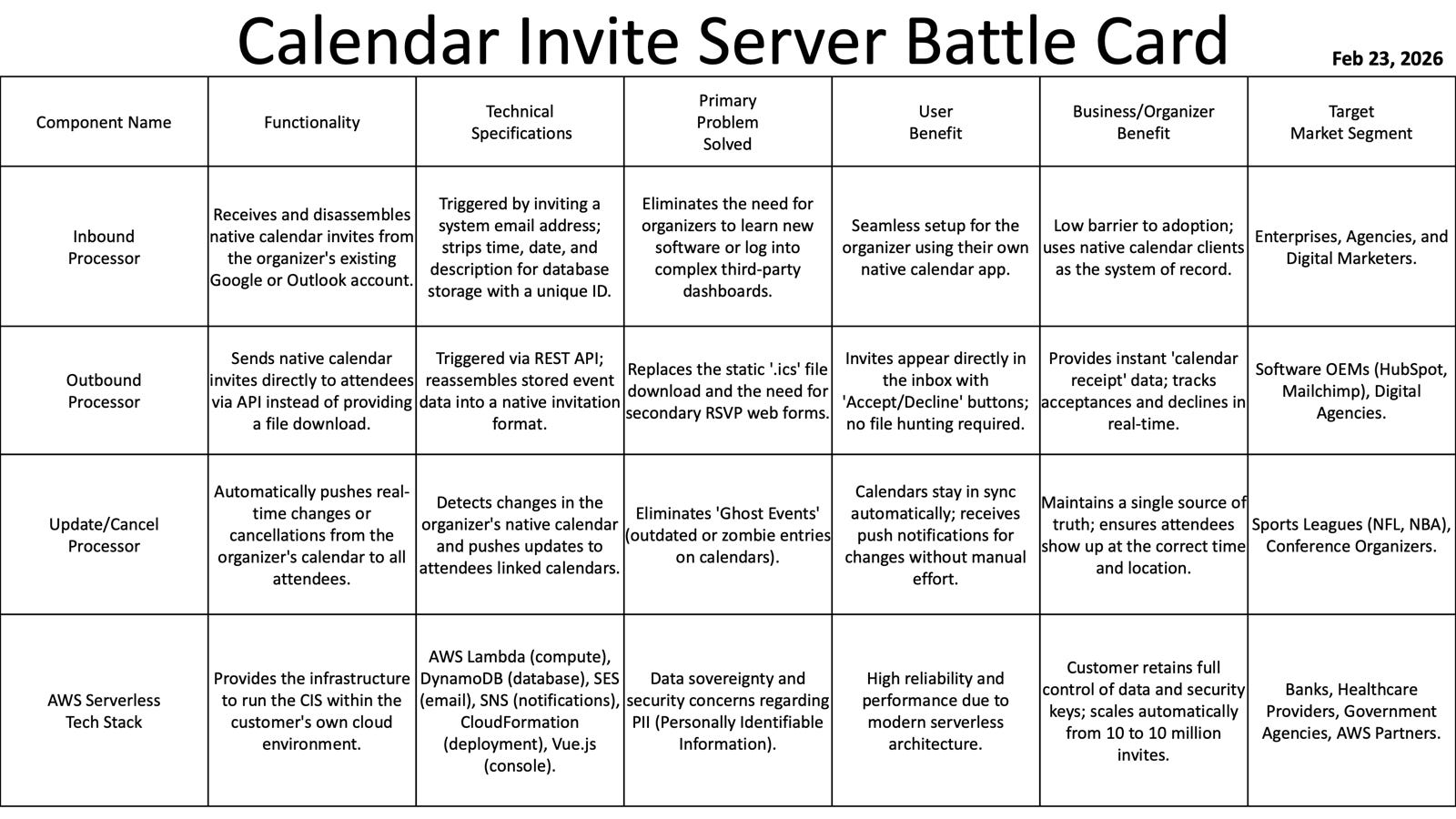
The Back End (BE) Stack for the Calendar Invite Server includes 30 Functions and 9 APIs used for the Create, Read, Update, and Delete operations in the REST API pipeline for embedded calendar invite use cases.
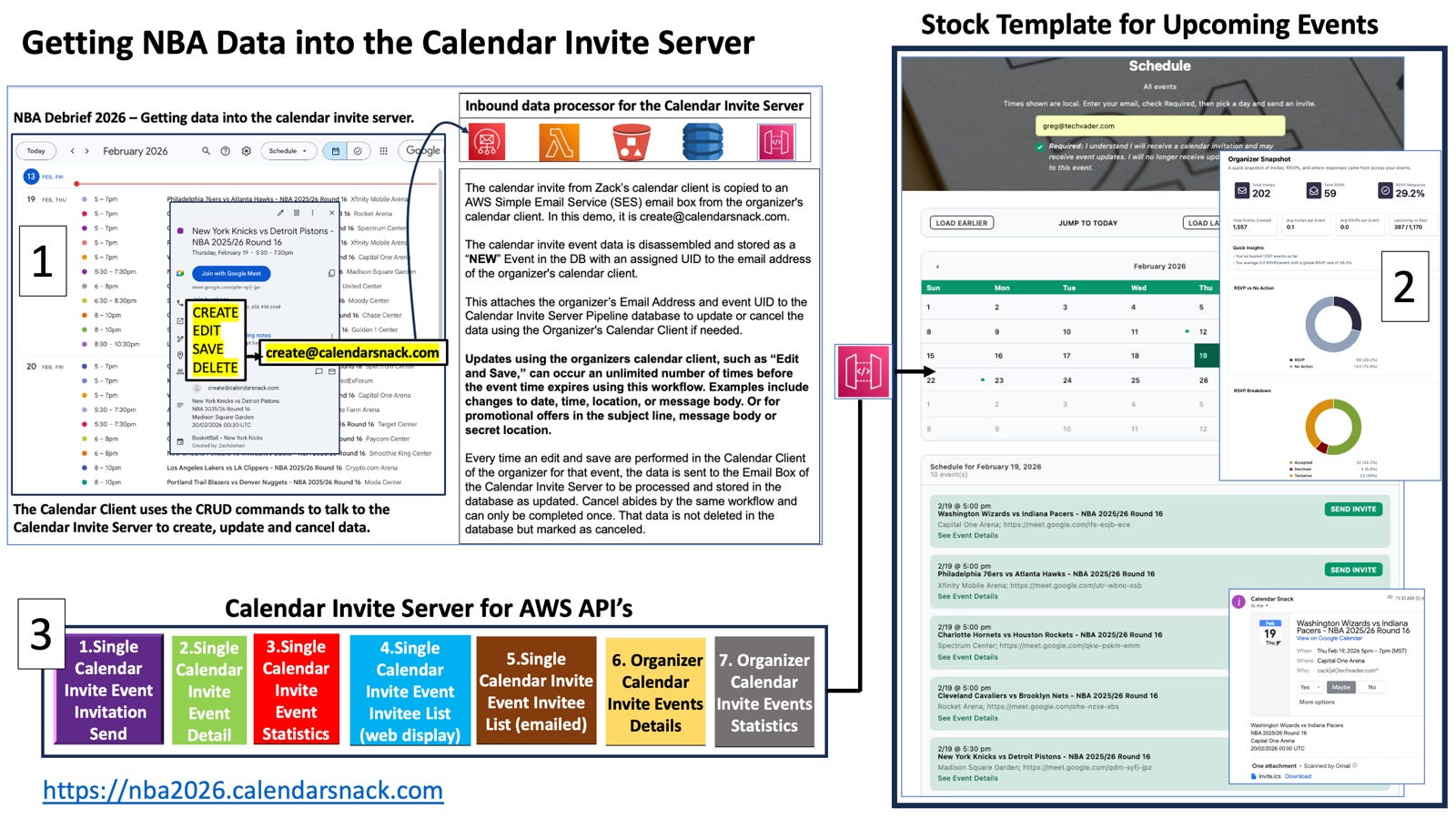
Calendar Invites are sent from the Organizer's Calendar client to an email address determined by the Calendar Invite Server administrator.
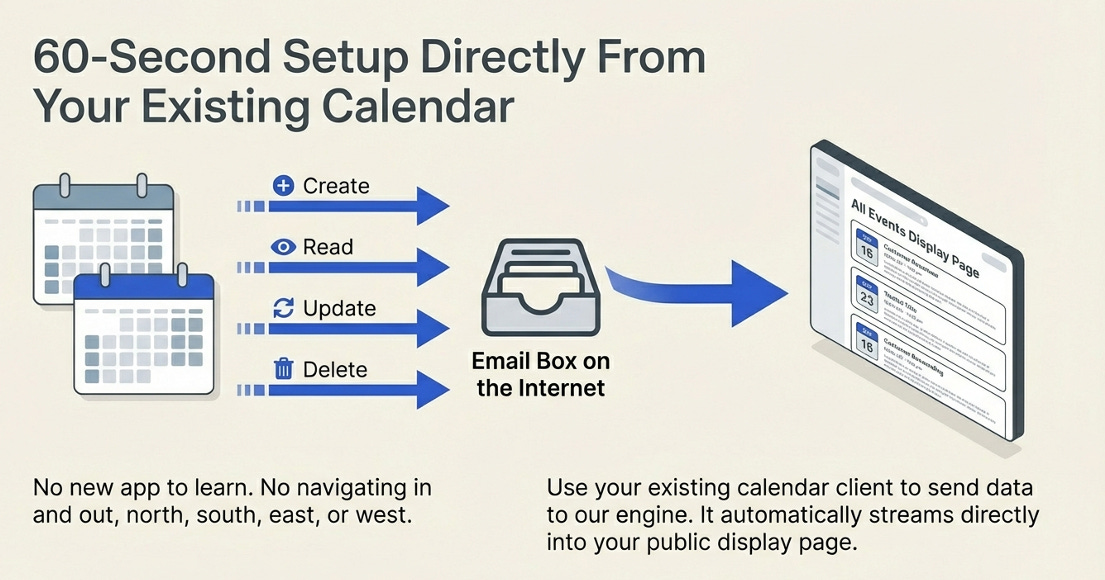
In the demo, it is create@calendarsnack.com, which is a REST endpoint for processing Calendar Invite Event Data for the organizer.
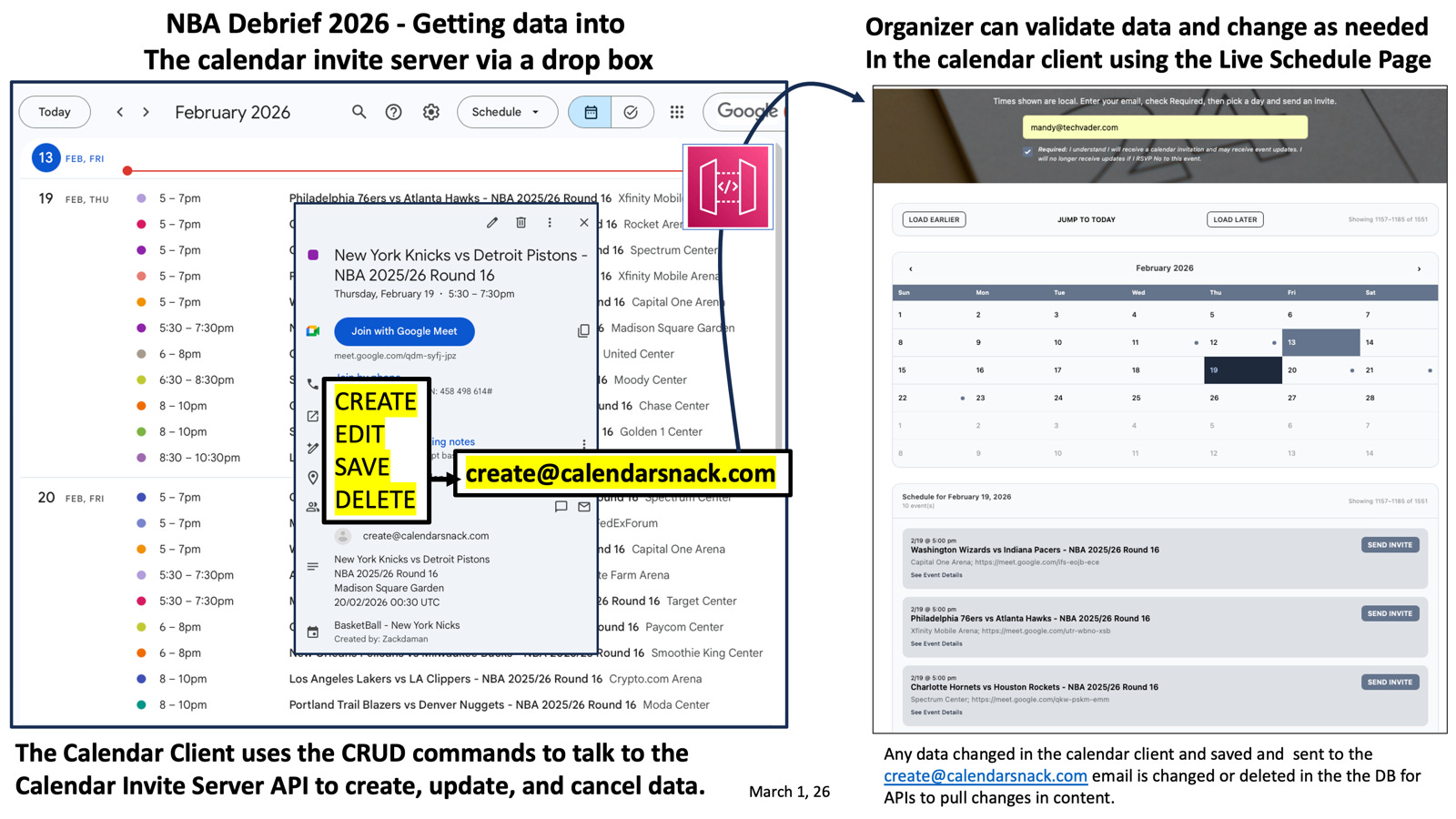
The End Point attaches the organizer’s calendar invite event data based on the customers Email address from the Calendar Client.
The organizer’s email address becomes the User ID in the workflow for create, read, update, and delete for the CRUD workflows when communicating with the API.
The individual calendar invite UIDs for calendar events are stamped in the DB and tracked for New Events, Updated Events, and Canceled Event status.
If the Calendar Invite is changed by the organizer and resent back to the API, we match the status to keep track of the data.
The data changes are inserted into the DB so the APIs can pull the recent updates for display.
If a customer already has the Calendar Invite from the Sports Event Page and the Organizer makes an UPDATE or CANCEL to the event, the updated Calendar Invite is automatically sent to those who already have the previous one.
Example of Workflow of an Calendar Invite Update
The Calendar Invite update occurs for Merch, Tickets, or 3rd-party promotions.
It could also be an operational change, such as Date, Time, Location, or a Cancel, that needs to be pushed to all Calendar Invite holders on the list.
In the demo, our organizer Zach EDITS the Original Calendar Invite and UPDATES the Message Body with a “MERCH OFFER Booth 393 at the game 25% off only” message for the Denver vs. Timberwolves game, and SAVES in the Calendar Client.
This starts the UPDATE process because the Calendar Invite hits the same API endpoint as create@calendarsnack.com, which kicks off the workflow.
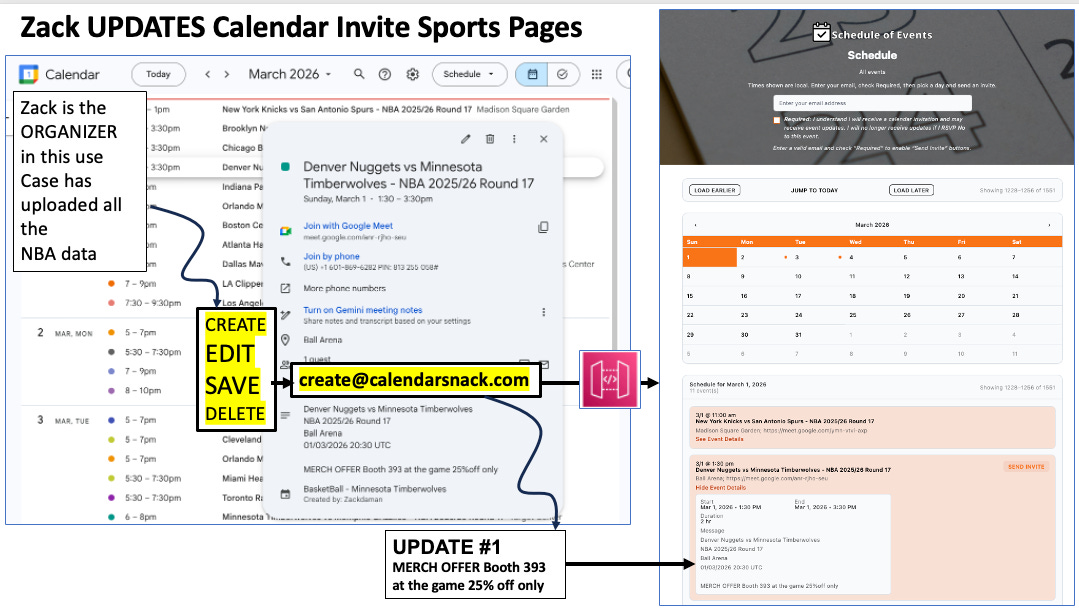
The Calendar Invite Event data is updated in the DB, and the API pulls the new data to the Sports Event page.
UPDATE Calendar Invites go out to all Customers that have received one already
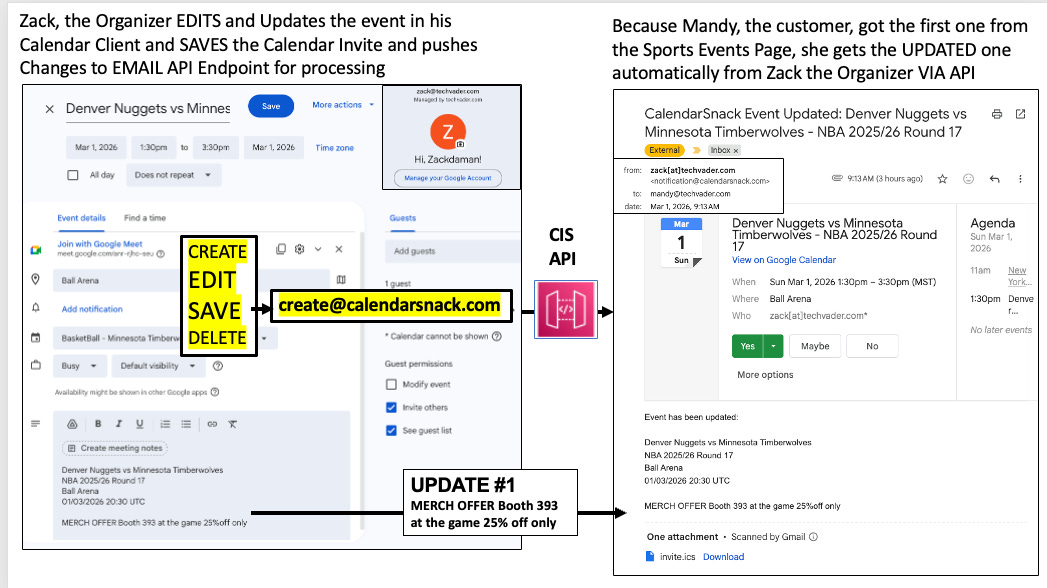
Zack, the Organizer EDITS and Updates the event in his Calendar Client and SAVES the Calendar Invite and pushes the changes to the EMAIL API Endpoint for processing.
Because Mandy, the customer, got the first one from the Sports Events Page, she automatically receives the UPDATED one from Zack, the Organizer via API.
Calendar Receipt data is recollected and sent back to the API for the DB and reporting.
Reporting for the Organizer
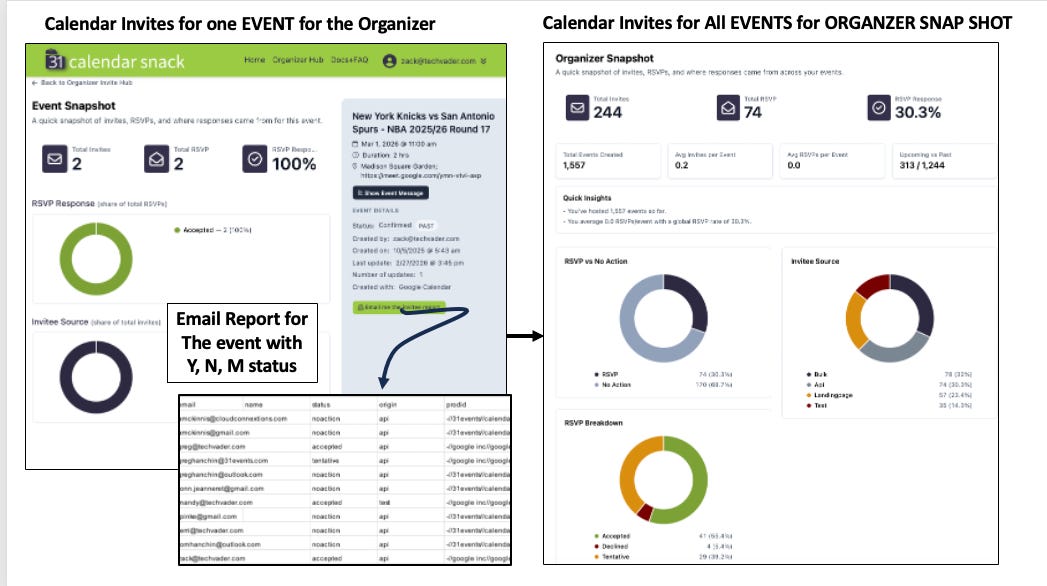
The data is rolled up for individual events and all events for the Organizer using the API’s.
Reporting for the Domain Owner
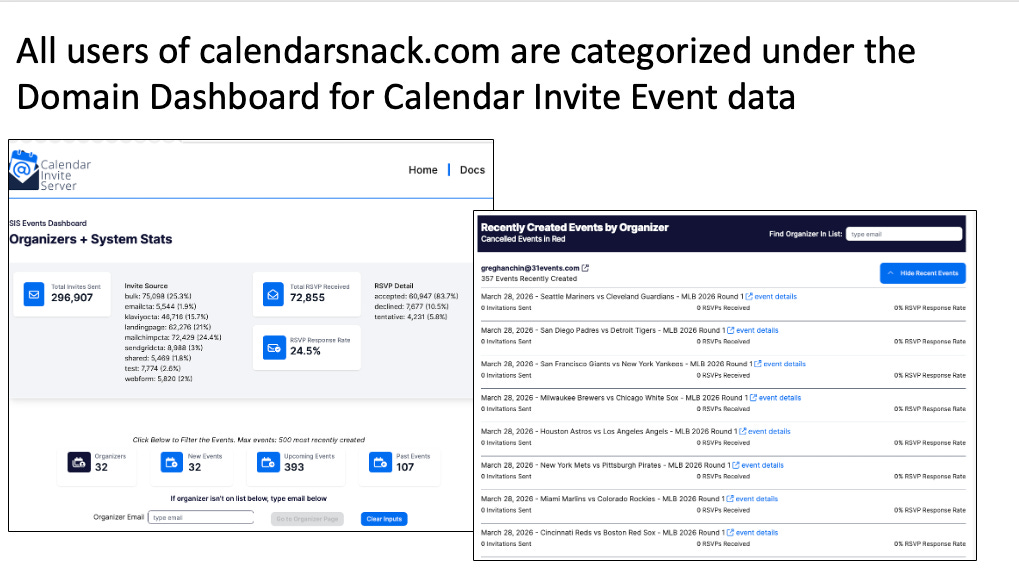
All Calendar Invite Events processed by the API’s and used in Email or Sport Pages are tracked for all Organizers under the domain owner.
Calendar Invite Server Wrap Up

AI Futures
Because our tech stack is built on AWS as a calendar invite messaging pipeline, the Front End and Back End workflows can be operated by AI operators, Web Crawlers, and AI Agents for content visualization.
The creation, sending, updating, and tracking of calendar invites could be operated by an AI Agent farm and would not need Microsoft or Google Email and Calendaring services to work.


