


Why did you build the Calendar Invite Server on AWS? Because sending emails for events with RSVP forms, ICAL downloads and reminder emails is a big internet mess. Each step for the organizer involves data input for setting up the RSVP Forms for Y, N, M Data Collection, and then a second step of ICAL Generation for the 4 Download Buttons of Yahoo, Google, Outlook, and Apple.
Then the organizer sends a reminder email, which asks whether the event is on your calendar. This whole process can be collapsed by sending one calendar invite first, gathering RSVP receipts and sending updates to those that have agree to come directly to the calendar.
For the customer, the mess is the ICAL download to the right calendar and then having to fill out the RSVP Form as two separate steps. Then the customer receives another email as a reminder to show up.
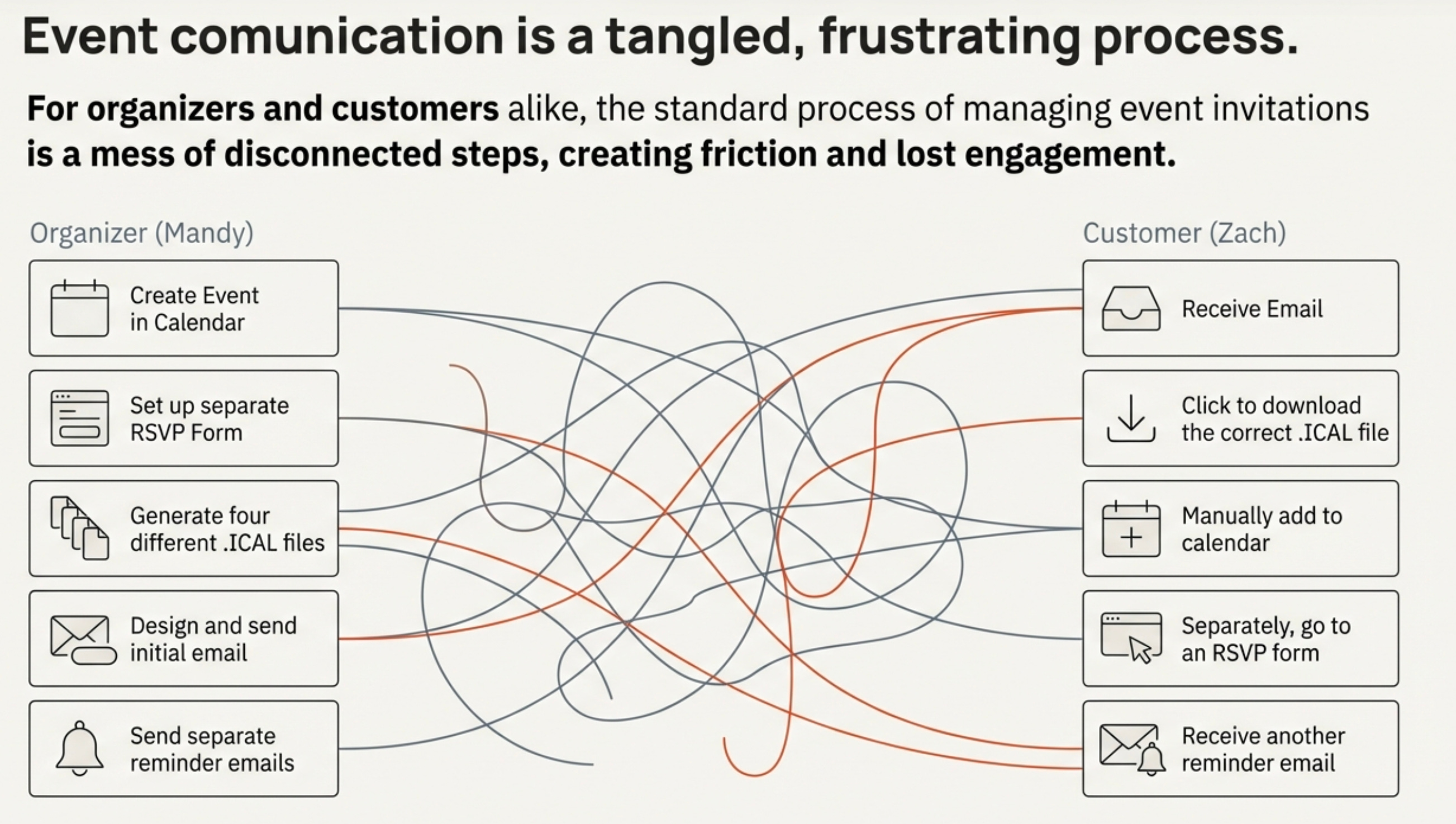
Why send a calendar invite? Because it appears directly in the customer’s email inbox as a calendar invitation, and it requests an RSVP by the organizer which is constantly monitored for changes and the calendar invite can be updated by the organizer with the Calendar Invite Server Rest API.
How does it work on a Landing Page? Customer enters an email on the Landing Page, selects the event from the picker, and clicks the button to get a calendar invite which is tracked and can be updated.
How does it work in an EMAIL CTA button? The customer clicks a button in MailChimp, Klaviyo, or SendGrid, and receives a calendar invite which is tracked and can be updated.
How does it work in the VIP APP? The organizer selects the event, uploads an email list, and sends the event with a single click which is tracked and can be updated.
How does the calendar client talk to the calendar invite server? The calendar client talks to the calendar invite server by an email box address assigned by the domain owner. The email Address is attached to an AWS Email box that receives calendar client data, disassembles the calendar invite event, and transforms the event data for storage in a database with an assigned UID. When the REST API is called for that UID, the calendar invite server reassembles the information, sends a calendar invite for that event, and collects the RSVP receipts.
Who is your ideal customer? OEMs, Service Providers, Large Brands, Newsletters, Sporting Verticals - The Calendar Invite Server Stack is built on AWS technology and can be deployed in any AWS account. A domain owner can send calendar invites and receive RSVP data for less than $10K a Year for a million calendar invites for thousands of Event organizers. The software includes production and development environments on GitHub, with access to AWS Lambda Functions and Python Libraries for further development and integration into applications such as the development of AI agents to auto-send calendar invites for appointment setting.
See one of our lives demo sites. It’s free to use.
Setting up the Demo Calendar Invite Server Scenario
Mandy is a manager who is using the NFL Game Schedule to offer up product and merchandise promotions for each game. She is sharing the Game Schedule from her company website using the automated landing page feature that is a workflow built into the calendar invite server for auto generating 100’s of events for sporting events.
Mandy organized the NFL Game schedule on her google calendar first and sent those events to the calendar invite server (CIS) to process and store the events using a simple email address for her to forward the events to.
This email box is an API endpoint that creates a connection for Mandy to use for event creation, event updating and event canceling from her Calendar Client.
Each calendar event then is ready with API codes for Automated Landing Pages, Email RSVP Buttons and VIP List Sending sending of calendar invites with one click that are tracked and the calendar invites can be updated by the organizer once the customer has received them. We call this the calendar invite message pipeline.
In this demo she uses automated Upcoming Events Page feature which displays the games in a chronological order.
Setting up the Demo Calendar Invite Server Scenario
Mandy is a manager who is using the NFL Game Schedule to offer up product and merchandise promotions for each game. She is sharing the Game Schedule from her company website using the automated landing page feature that is a workflow built into the calendar invite server for auto generating 100’s of events for sporting events.
Mandy organized the NFL Game schedule on her google calendar first and sent those events to the calendar invite server (CIS) to process and store the events using a simple email address for her to forward the events to.
This email box is an API endpoint that creates a connection for Mandy to use for event creation, event updating and event canceling from her Calendar Client.
Each calendar event then is ready with API codes for Automated Landing Pages, Email RSVP Buttons and VIP List Sending sending of calendar invites with one click that are tracked and the calendar invites can be updated by the organizer once the customer has received them. We call this the calendar invite message pipeline.
In this demo she uses automated Upcoming Events Page feature which displays the games in a chronological order.
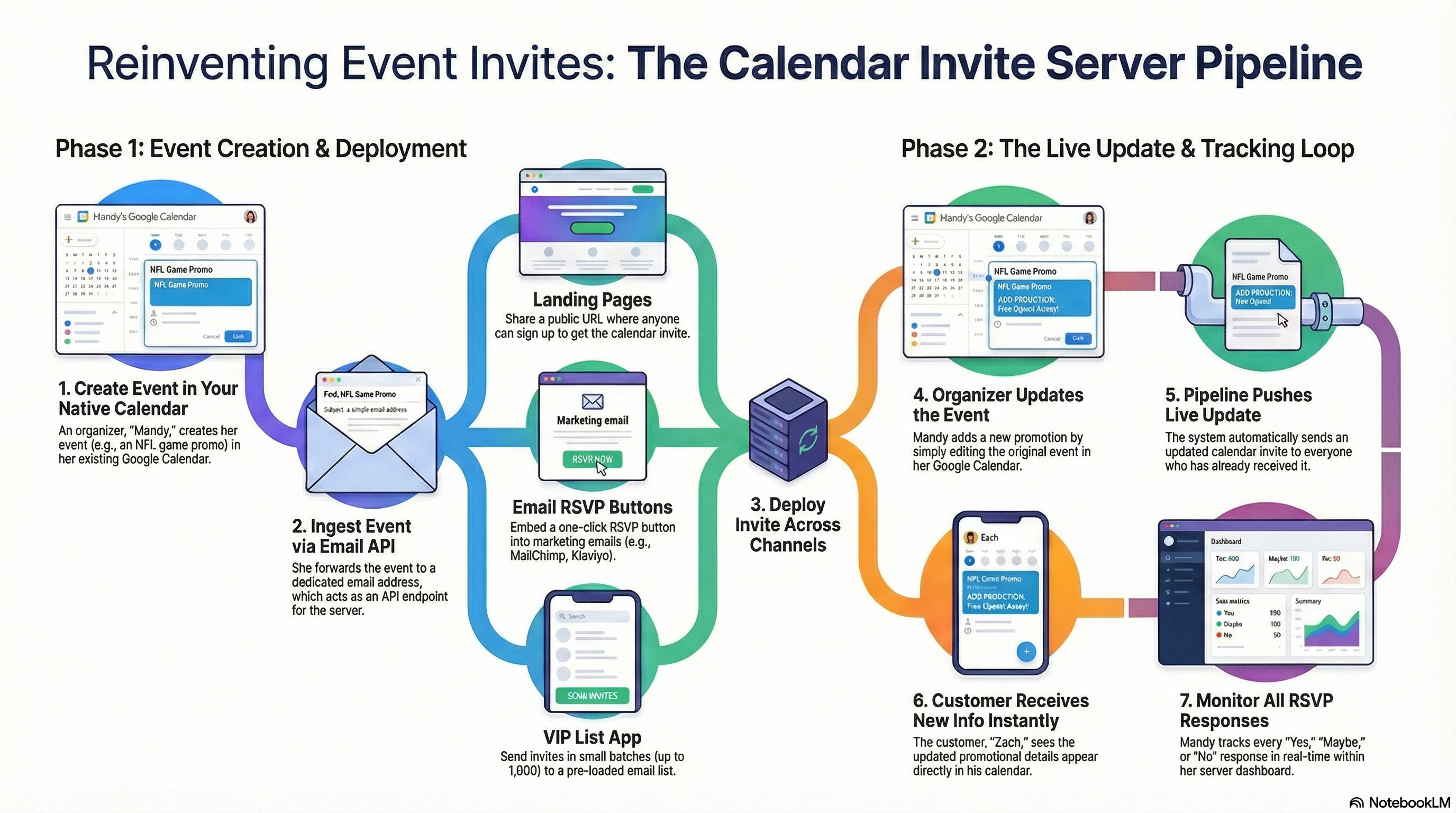
The Upcoming Page is shared with Zach who is her customer. He inserts his email at the top of the page and selects a game by clicking one button and getting the calendar invite.
Mandy Updates the NFL Game Event two times in her Google Client to demonstrate how the calendar invite messaging pipeline works when the message body is changed for promotional additions and how collecting and monitoring calendar receipts appear in her calendar invite console when her customer Zack see’s them in his calendar client.
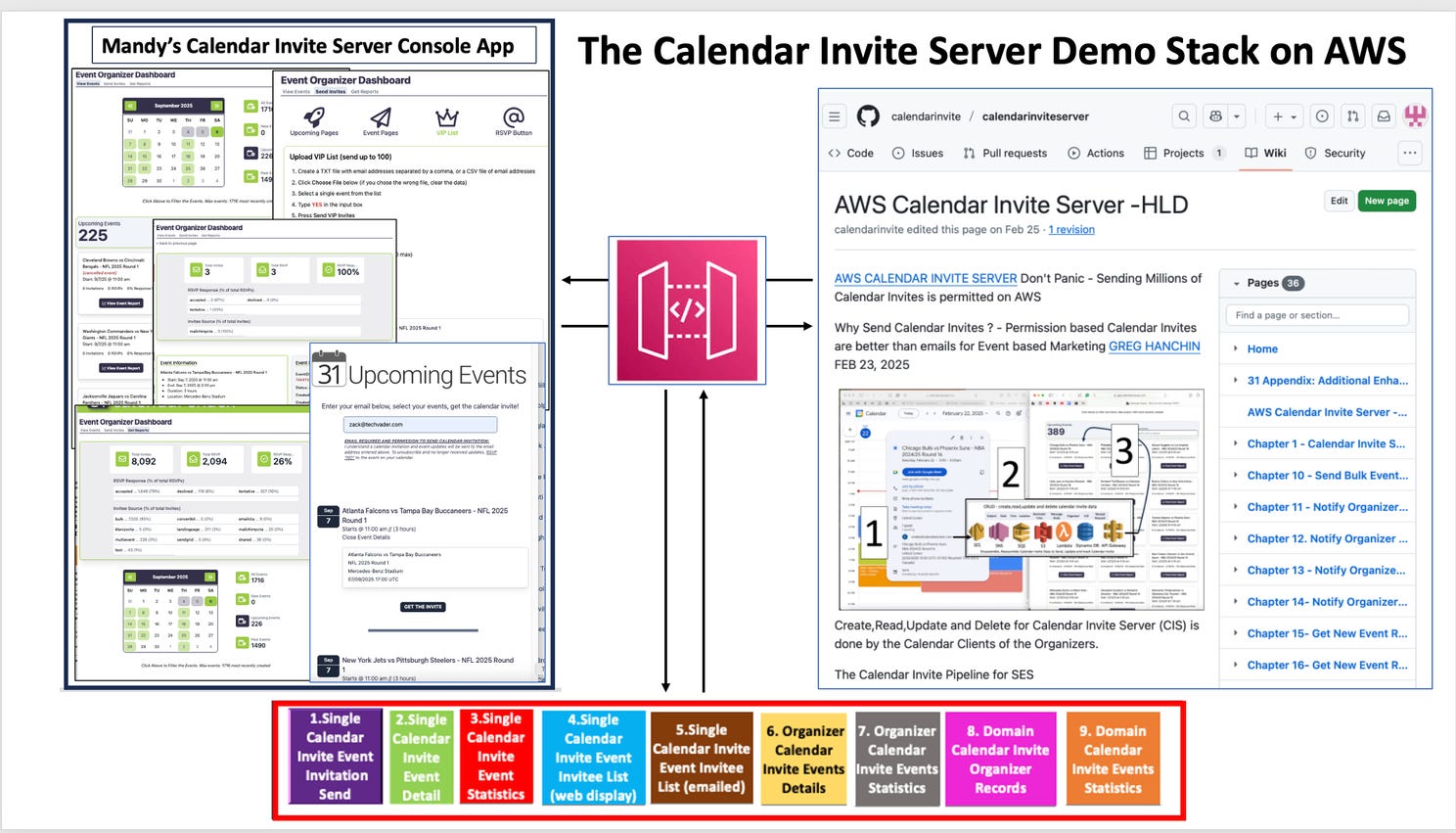
The Calendar Client, the Calendar Invite Server and the Calendar Invite Messaging Rest API Pipeline overview.
Mandy uses her Calendar Client to create, update and delete event information in the Calendar Invite Server as the organizer.
The Calendar Invite Server creates the APIs codes for the events and stores them for recall by using the rest API for sending calendar invites in web, email and apps. The Calendar Invites are constantly monitored and can be updated by the event organizer Mandy.
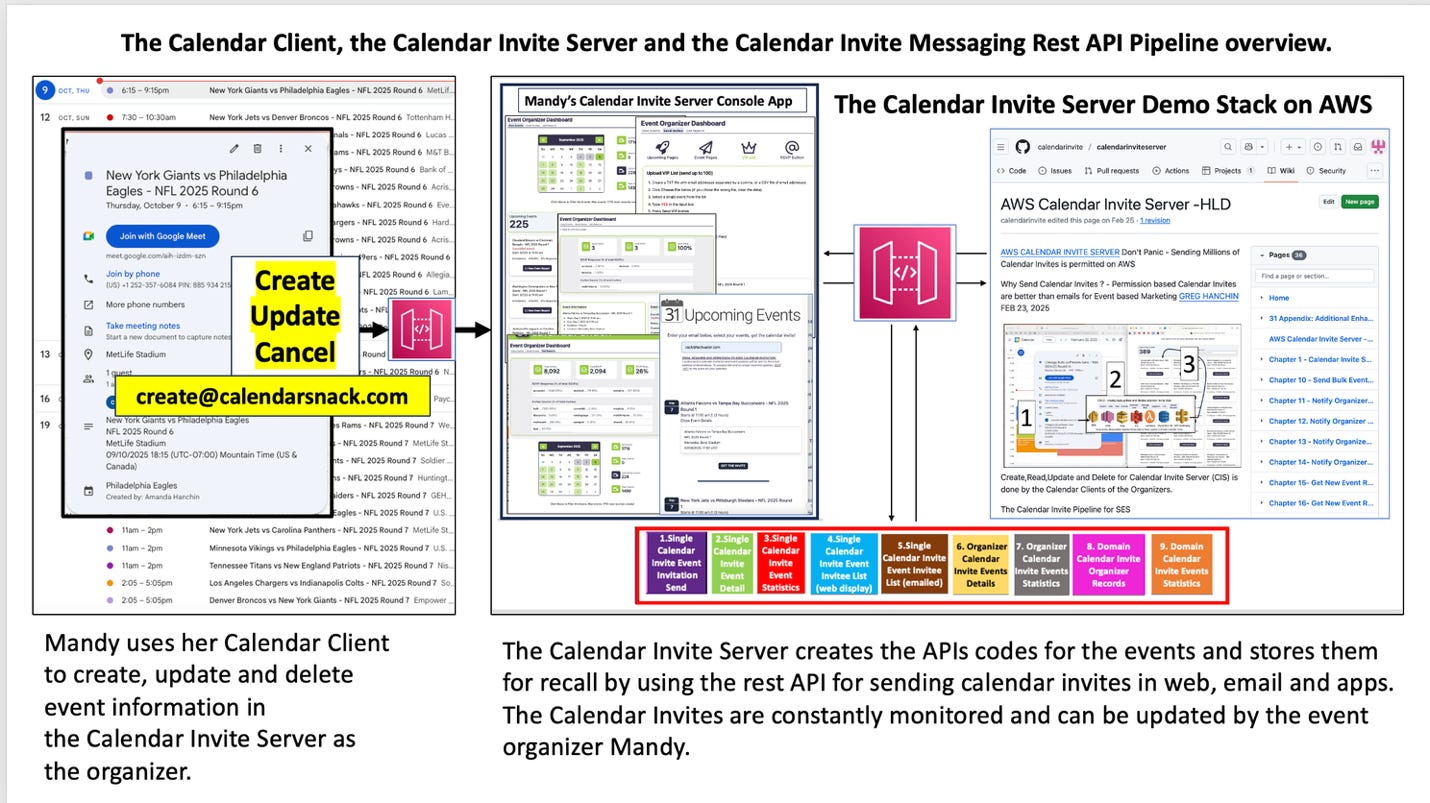
The messaging pipeline starts with the Inbound API EndPoint of the Email Box assigned by the domain owner
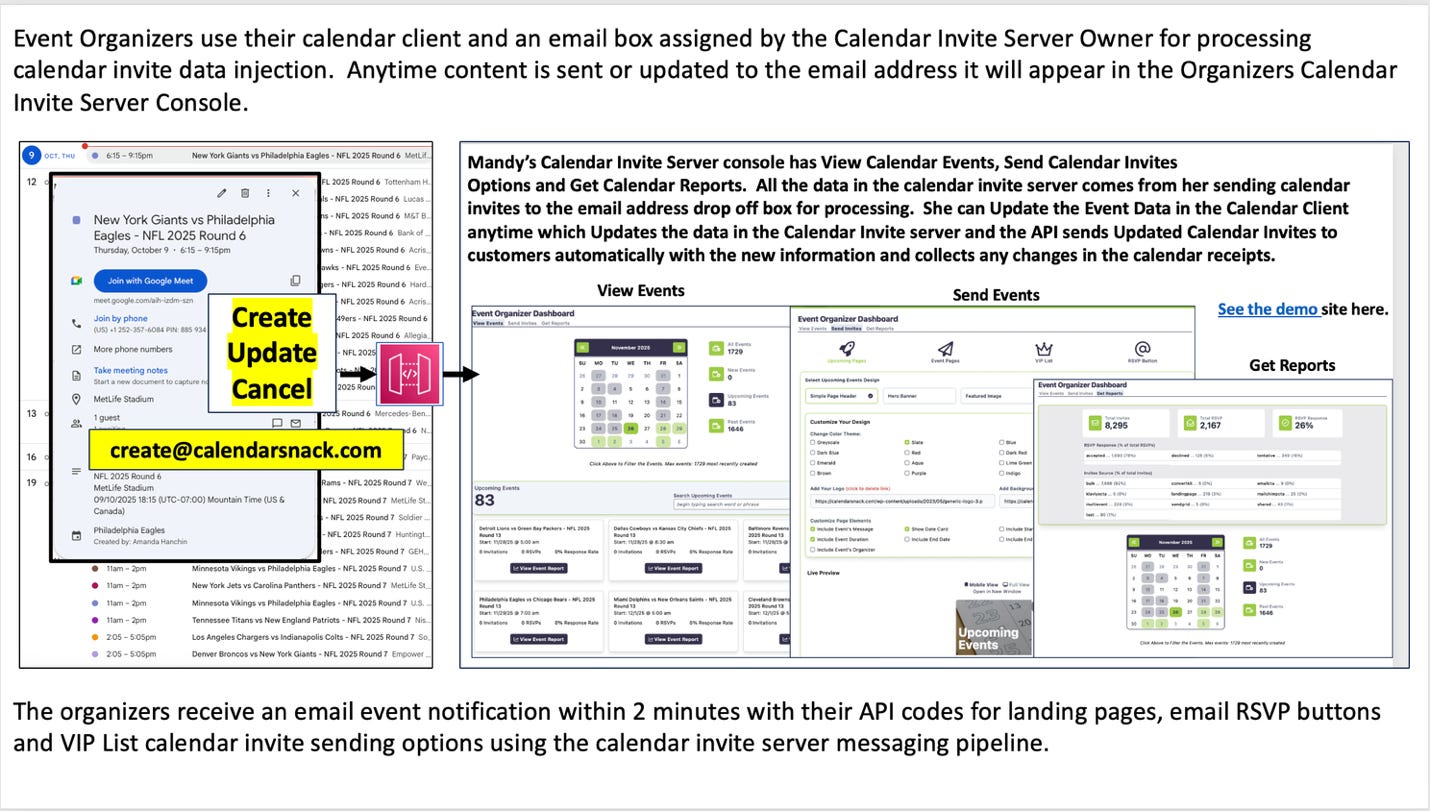
Event Organizers use their calendar client and an email box assigned by the Calendar Invite Server Owner for processing calendar invite data injection. Anytime content is sent or updated to the email address it will appear in the Organizers Calendar Invite Server Console.
Mandy’s Calendar Invite Server console has View Calendar Events, Send Calendar Invites Options and Get Calendar Reports. All the data in the calendar invite server comes from her sending calendar invites to the email address drop off box for processing. She can Update the Event Data in the Calendar Client anytime which Updates the data in the Calendar Invite server and the API sends Updated Calendar Invites to customers automatically with the new information and collects any changes in the calendar receipts.
The organizers receive an email event notification within 2 minutes with their API codes for landing pages, email RSVP buttons and VIP List calendar invite sending options using the calendar invite server messaging pipeline.
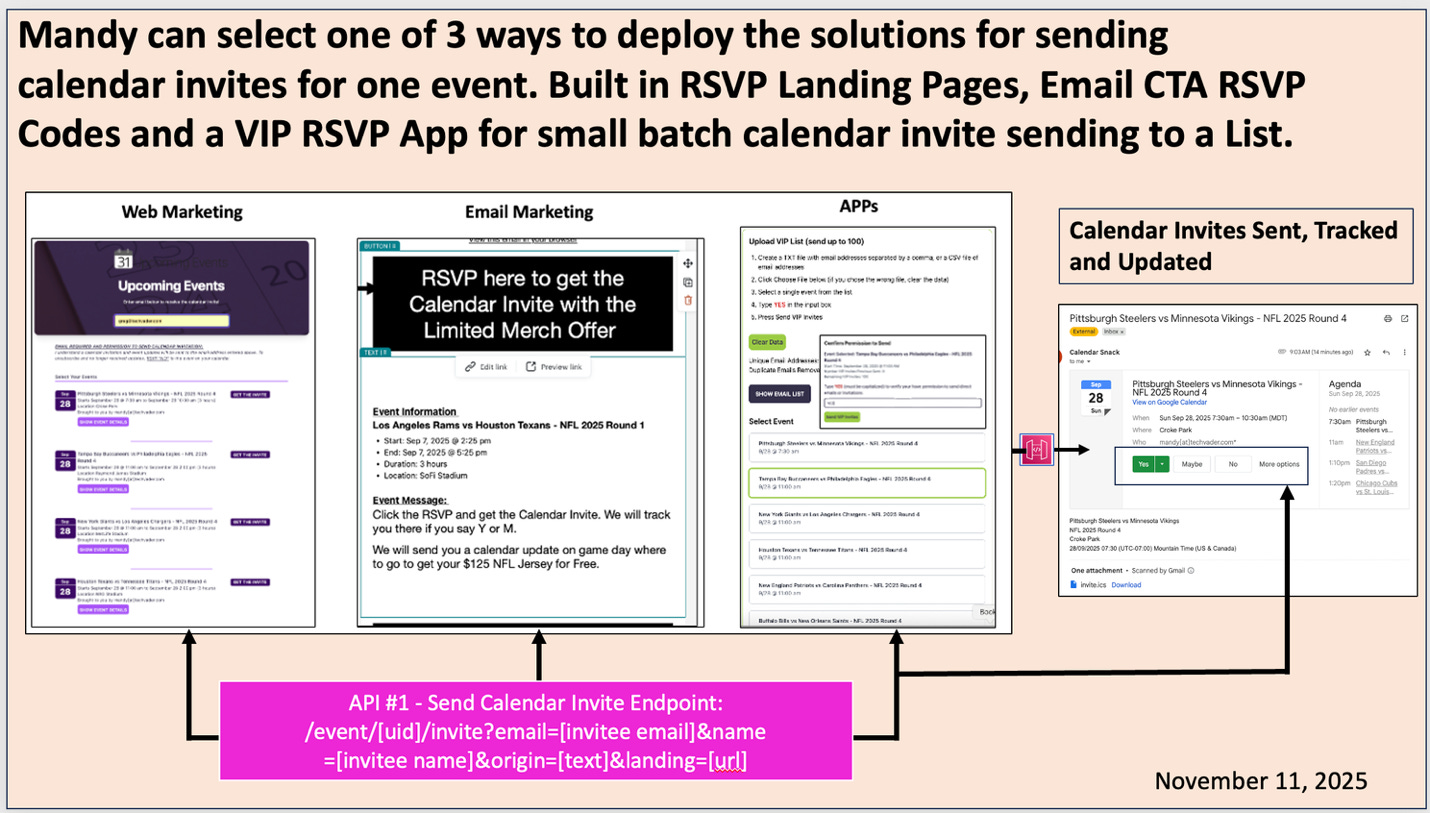
Mandy can select one of 3 ways to deploy the solutions for sending calendar invites for one event. Built in RSVP Landing Pages, Email CTA RSVP Codes and a VIP RSVP App for small batch calendar invite sending to a List.
NFL Demo - Organizer Mandy. Creating and changing Calendar Invite Data in the Calendar Invite Server with a Calendar Client.
Mandy is the Google Calendar Client Organizer; she starts off by first organizing the events on her Google Calendar using her Calendar Client to get the specific event details together. In this example she gather’s the NFL Game Schedule and sent the individual events for the NFL to the calendar invite server email box. In this demo the email box name is create@calendarsnack.com.
Data can be changed in the calendar invite server by using the calendar client used for the creation of the first event. Organizers use the calendar client to change and save the event in the client. That pushes the new data to the calendar invite server for that UID and those changes are automatically updated in the DB to be used for console display and API codes for deployment in one of the 3 options.
When Mandy Logs into the (CIS) calendar invite server console she is presented with event dashboards and can access her 3 options to send calendar invites using the Rest API for each event listed.
1.The Landing Pages are pre built and ready to deploy as an URL with the embedded calendar invite API and an email box.
2.The RSVP Buttons are embedded API calendar invite codes for CTA insertion into Email Providers like Mailchimp.
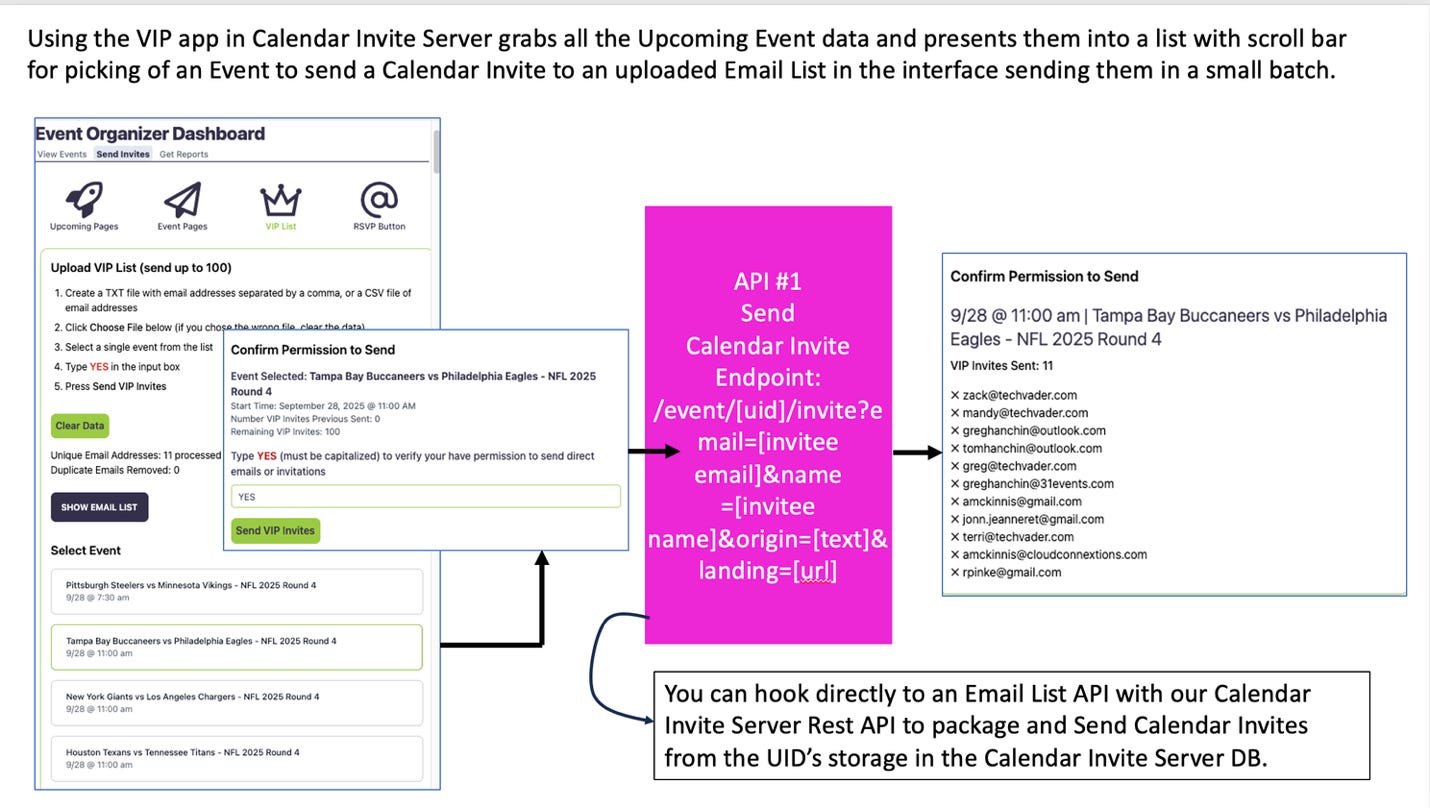
3.A VIP APP is available to do a small batch of direct calendar invites using an email list loader and an event picker to send in a batch mode of up to 1000 emails at a time.
Automated Landing Page Demo - Mandy selects and shares the prebuilt landing page with Zack her customer. Zack inserts his email and selects a game and clicks one button to get calendar invite which is tracked by Mandy’s console.
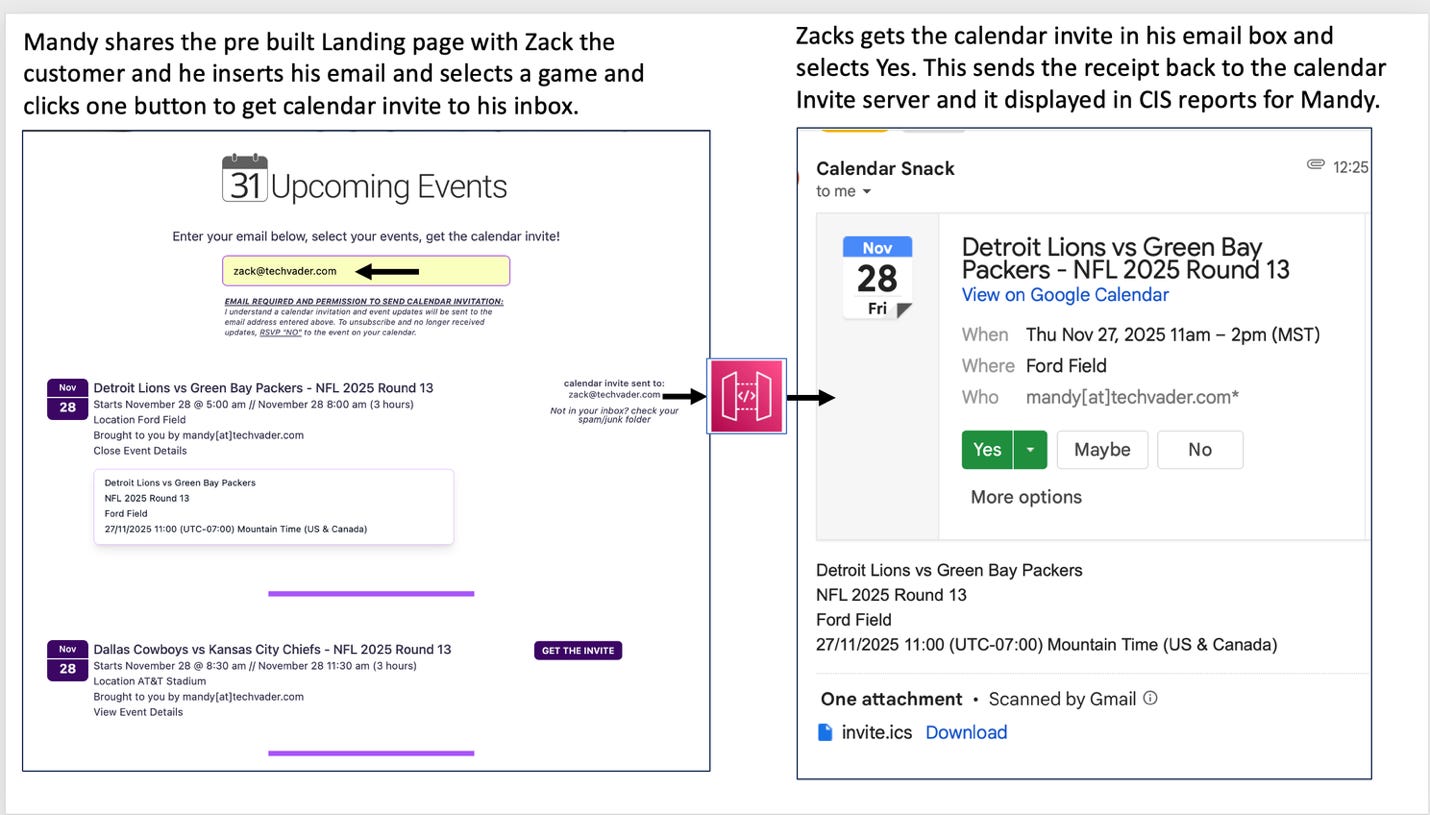
Mandy shares the pre-built Landing page with Zack the customer and he inserts his email and selects a game and clicks one button to get calendar invite to his inbox.
Zack gets the calendar invite in his email box and selects Yes. This sends the receipt back to the calendar Invite server and its displayed in Calendar Invite Server reports for Mandy.
Zack gets Calendar Invite and says Yes and Mandy tracks any changes
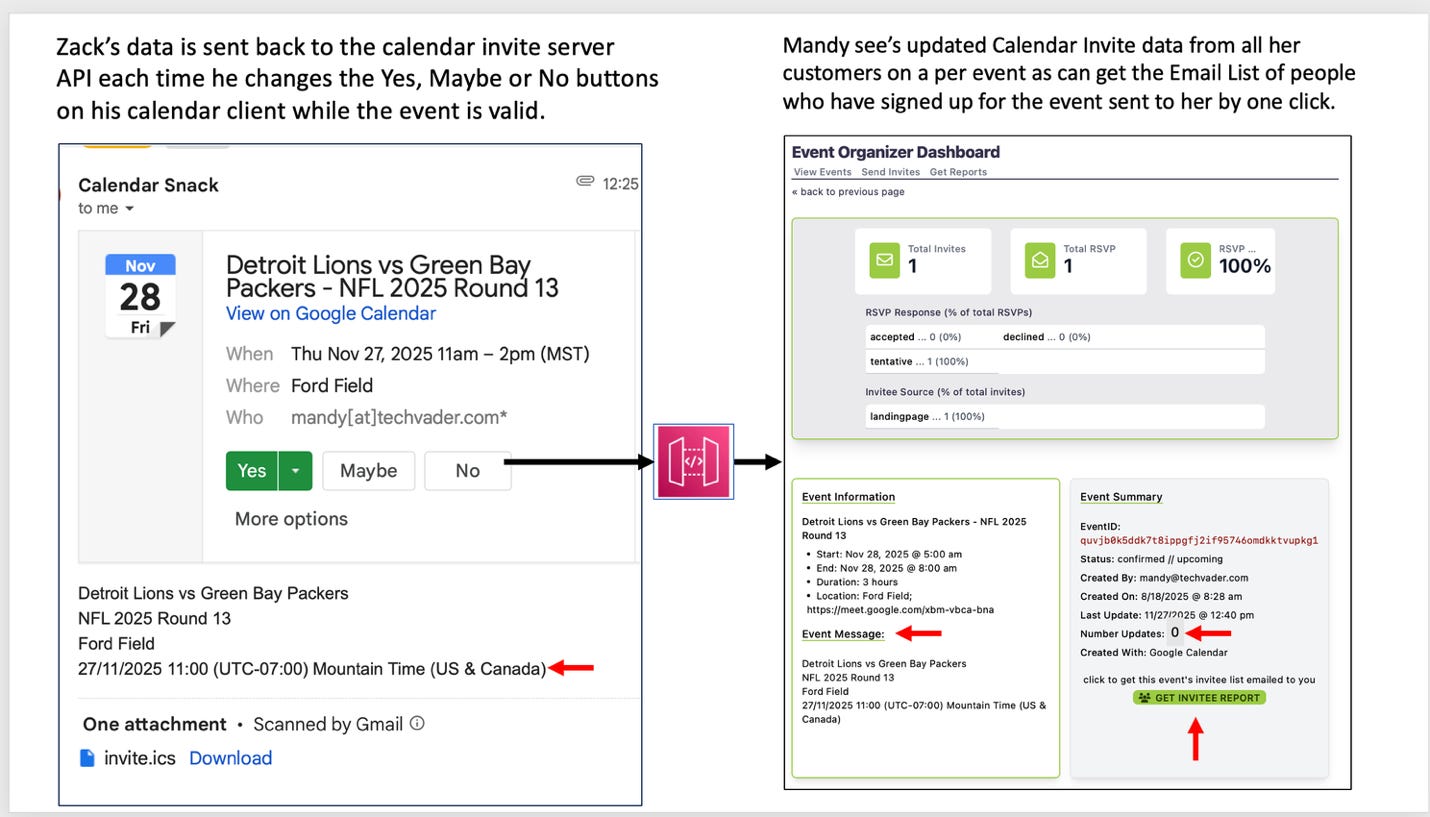
Zack’s data is sent back to the calendar invite server API each time he changes the Yes, Maybe or No buttons on his calendar client while the event is valid.
Mandy see’s updated Calendar Invite data from all her customers on a per event as can get the Email List of people who have signed up for the event sent to her by one click.
How Calendar Invite data is updated from the Organizer’s POV - Mandy.
The Organizer uses the Calendar Client to create, update or delete information in the Calendar Invite Server by sending to the Inbound API for processing
UPDATE 1- Mandy Inserted “Stop by NFL VIP Booth 652 at the Game to get a Free T-shirt valued at $25” into the message body of the original calendar invite on her google client and saved. This resends the original calendar invite message with the UID that was ingested in the Inbound API Endpoint. We track each message that hits the Inbound API and look it up in the DB to confirm if the EVENT is NEW or an UPDATE of an existing EVENT and resend any additional UPDATES in the calendar invite messaging pipeline to APIs, DB and the Out Bound API if needed.
Anyone customer who has the calendar invite from the calendar invite server rest API for the Event will get the UPDATE 1 from Mandy using the Outbound Processor. The Calendar Invite Server Apis keep track of the calendar invite event content and tracks new RSVP responses from UPDATED events. The Update counter is advanced to 1 in the APIS and shows in the Calendar Invite Console.
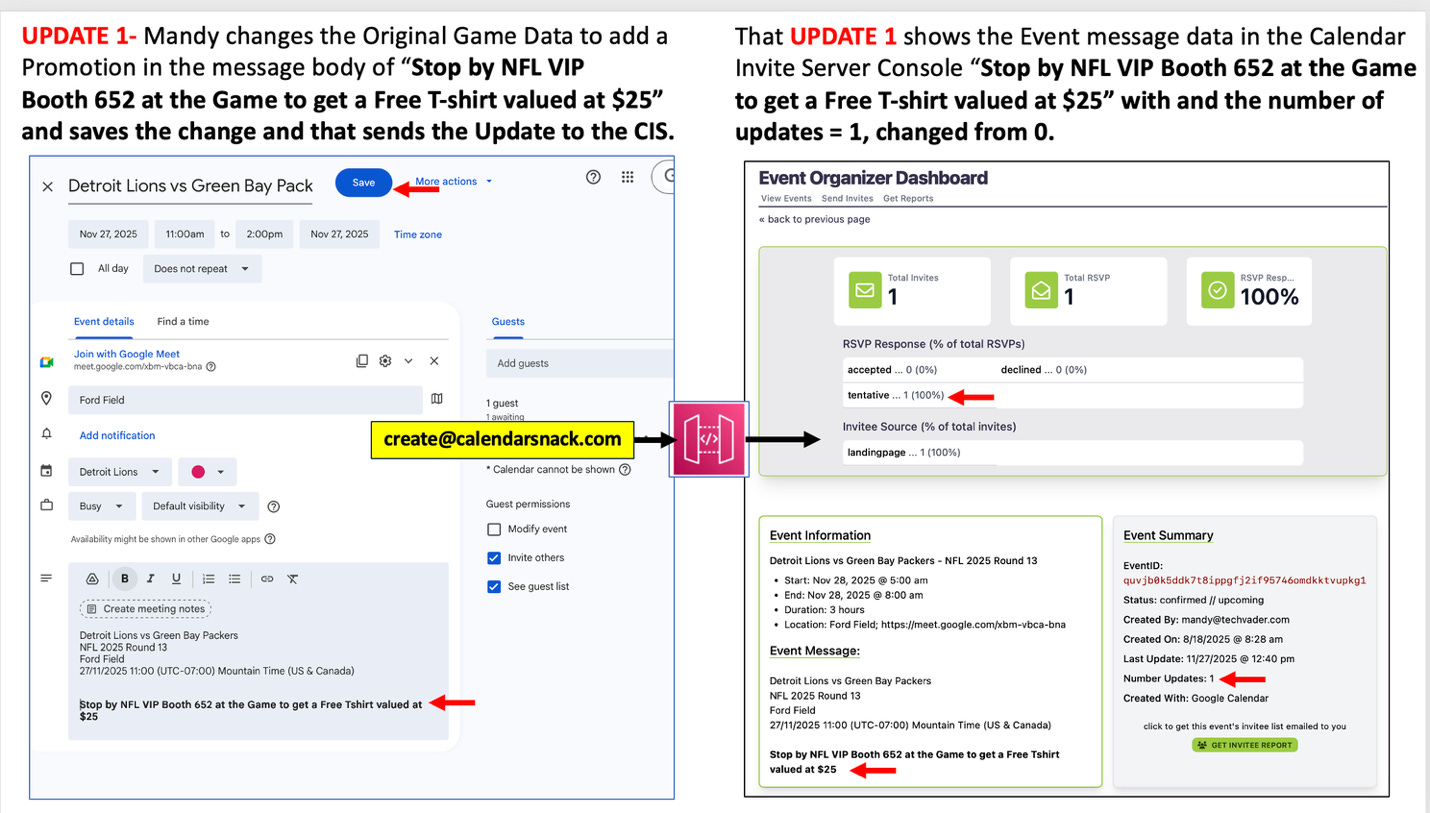
What Zack the customer see’s as Update 1 is sent by the Mandy the Organizer in his calendar client

Zack the customer gets UPDATE 1 Calendar Invite from CIS and responds Maybe to Mandy (Tentative). Mandy the Organizer see’s the Updated Tentative response from Zack in the CIS Dashboard.
UPDATE 2- Mandy changes the Original Game Data to add a Promotion in the message body of “Stop by NFL VIP Booth 750 at the Game to get a Free Jacket valued at $125” and saves the change.
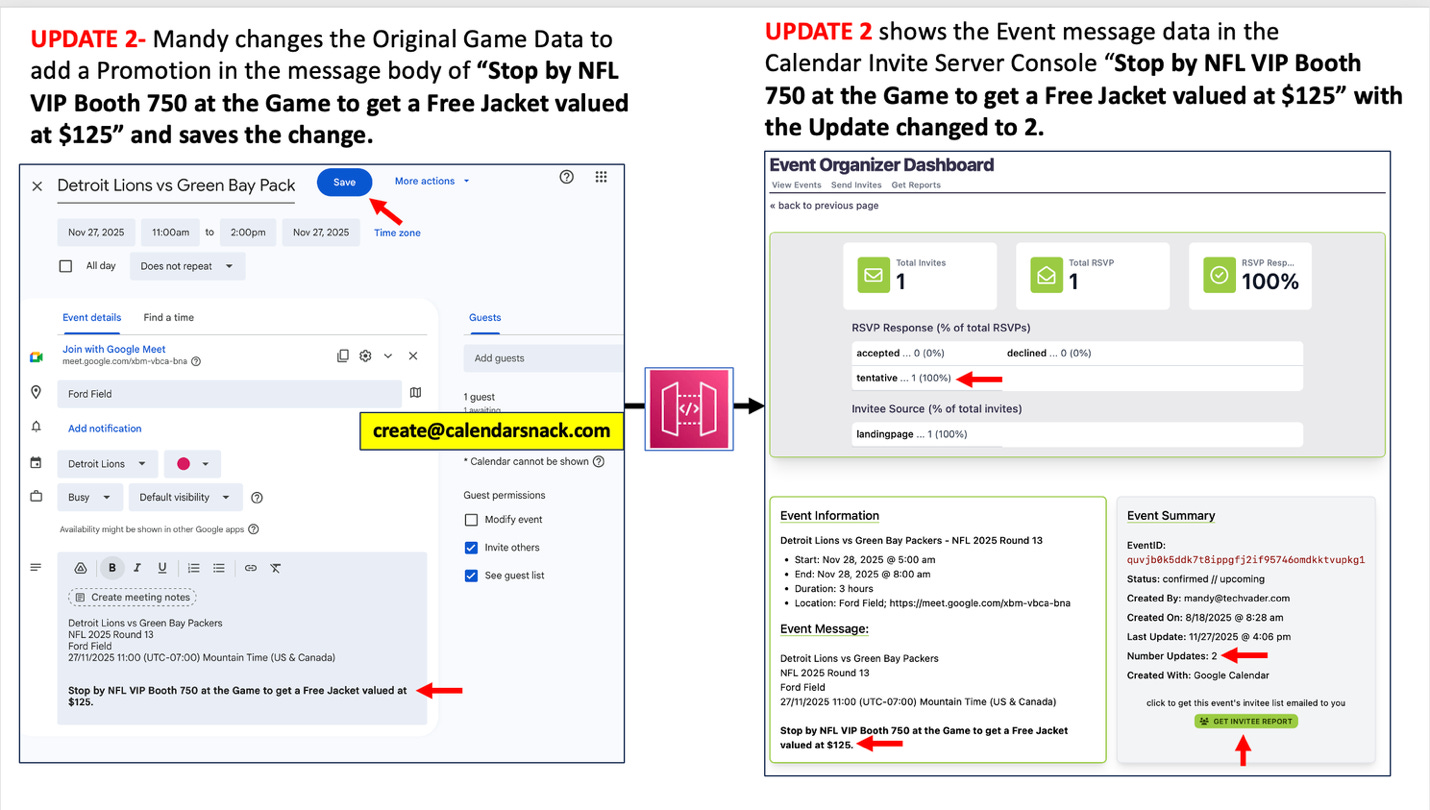
UPDATE 2 shows the Event message data in the Calendar Invite Server Console “Stop by NFL VIP Booth 750 at the Game to get a Free Jacket valued at $125” with the Update changed to 2 in the Console.
What Zack the customer see’s as Update 2 is sent by the Mandy the Organizer in his calendar client
Zack the customer gets the Update 2 of Calendar Invite from the Calendar Invite Server and responds (YES) to Mandy the Organizer. Mandy the Organizer see’s the Updated YES, response from Zack in the Calendar Invite Server Dashboard and Update Category is moved to number 2.

Other Options for Mandy the Organizer to Send Calendar Invites with the REST API Codes?
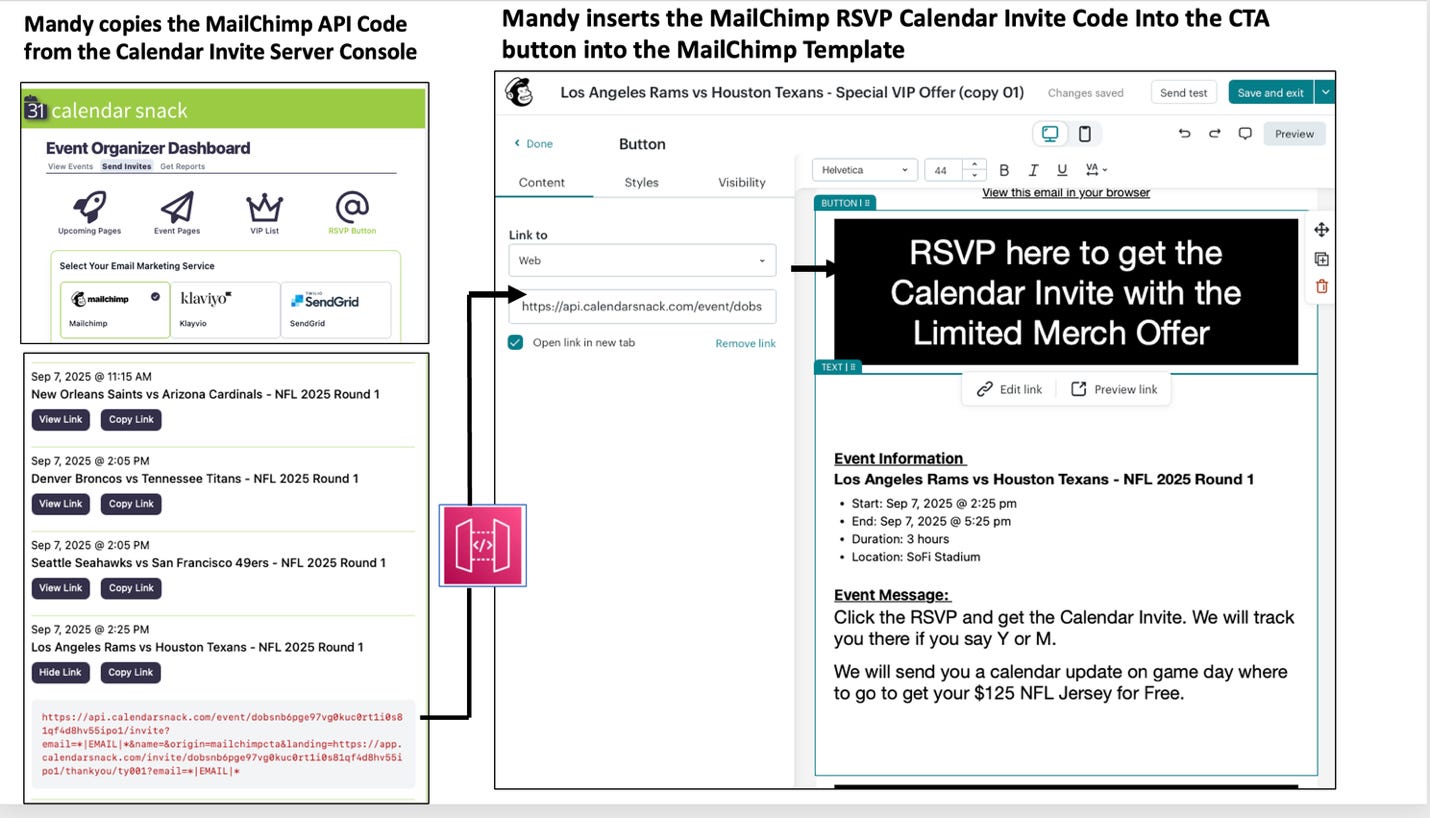
Option 2- Using the Email RSVP Button Codes in Email Templates for One-Button Calendar Invite Sending from the Calendar Invite Server.
This is a great option if Mandy already has an email list she regularly sends to for Email Marketing. This inserts the calendar invite into the MailChimp Campaign for the customer’s one-click calendar invites. Mandy the Organizer uses the pre-built MailChimp API Codes for the event to insert into the NFL Campaign.
When the customer clicks the RSVP CTA, they receive the calendar invite and are redirected to a landing page. The Calendar Invites are tracked and can be updated by the Organizer.
Option 3- Using the VIP List Manager App for One-Button Calendar Invite Sending to a Small Batch List. Mandy the Organizer uses the VIP List Manager App as the third Option for the NFL Campaign. This is a great option if she already has permission to send calendar invites from customers and to use the VIP App to send small batches of 1,000 emails to a list.
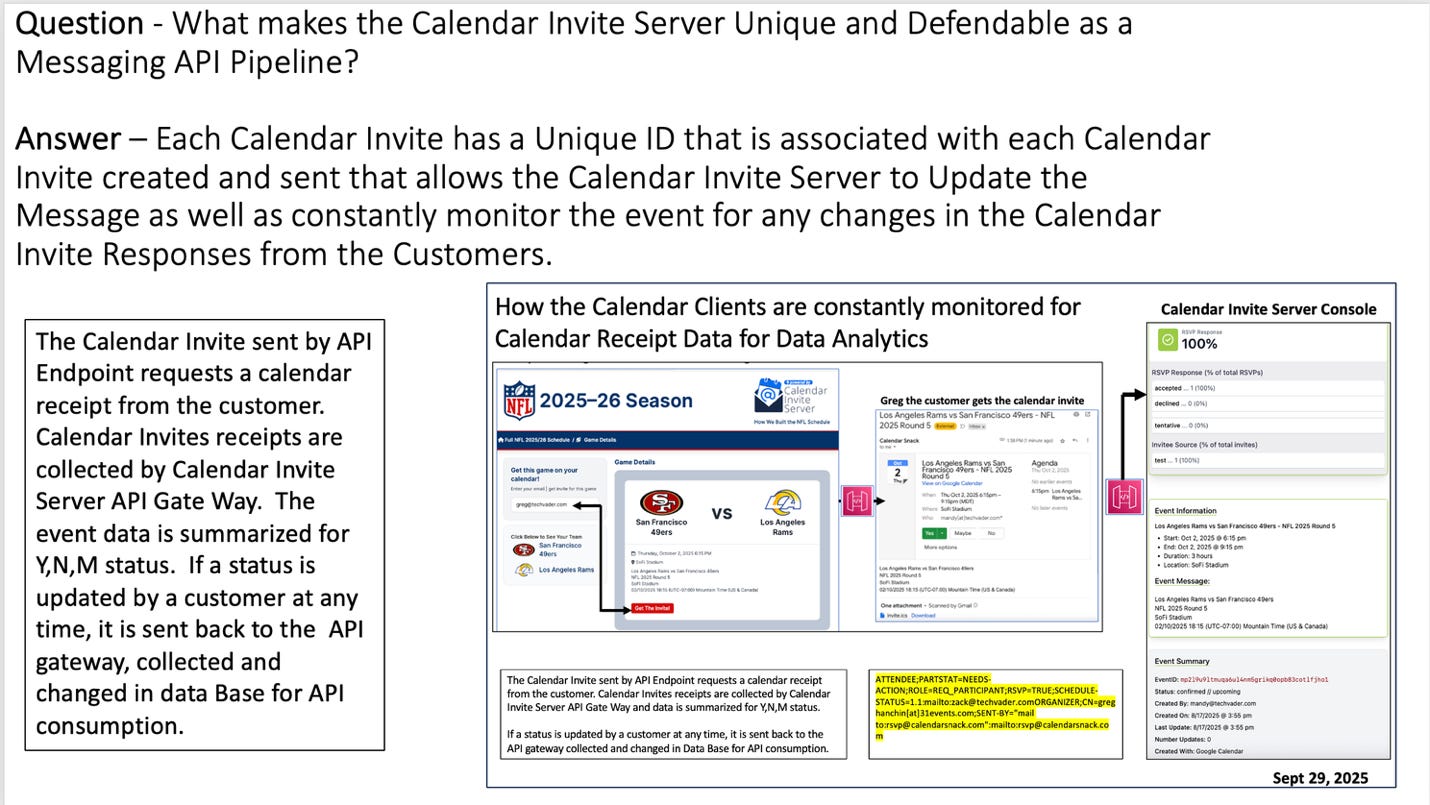
Question - What makes the Calendar Invite Server Unique and Defendable as a Messaging API Pipeline?
Answer – Each Calendar Invite has a Unique ID that is associated with each Calendar Invite created and sent that allows the Calendar Invite Server to Update the Message as well as constantly monitor the event for any changes in the Calendar Invite Responses from the Customers. The Calendar Invite sent by API Endpoint requests a calendar receipt from the customer. Calendar Invites receipts are collected by Calendar Invite Server API Gate Way. The event data is summarized for Y,N,M status. If a status is updated by a customer at any time, it is sent back to the API gateway, collected and changed in data Base for API consumption.
The Calendar Invite Server Glossary
